


Simple Scan - PDF Scanner App
4.711.16K Reviews
App Specs
- Version
- 5.2.4
- Updated On
- License
- Free
- Downloads
- 10,000,000+
- Developer
- Easy inc.
- Categories
- Business
- Platform
- Android
Screenshots
 Analysis by AppCompare
I often need to turn a loose paper into something I can send or keep, and a phone camera is the most convenient tool I usually have with me. Simple Scan - PDF Scanner App is built for that quick handoff: capture a document, tidy its appearance, and make a shareable file. Its usefulness depends not only on the scan itself but also on how smoothly the next step works when you need to send, store, or retrieve it.
When a scan needs to leave your phone
The most noticeable network-dependent moments come after capture. A scan can be prepared on the phone, but emailing it or sending it to cloud storage relies on the service and connection involved in that particular handoff. I’d treat the app as a convenient document-making step, not assume every destination will be reachable wherever I happen to be.
That distinction matters in ordinary situations. If I’m in a lobby collecting a signed form, I can focus on getting a readable image first, then choose when and how to share it. If the connection is weak, it’s sensible to check the saved document and retry the sending step once service improves rather than repeatedly recapturing the same page.
Useful in the places paperwork finds you
This is the sort of tool I’d keep ready for a receipt at a shop, a page of class notes after a lecture, or a form that needs to reach someone before I get back to a desk. The app’s central scan control suits short, unplanned tasks better than a workflow that begins with creating a project or learning a complex editing suite.
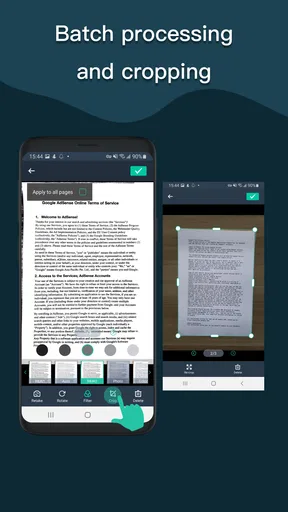
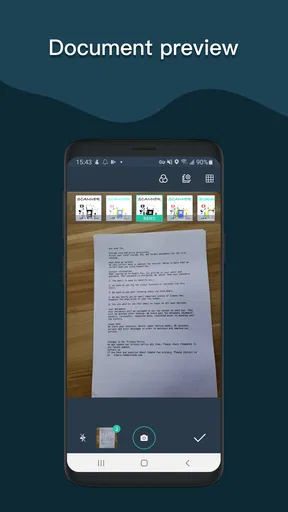
For a multi-page document, I’d work somewhere with steady light and a flat surface, capture each sheet in order, and review the edges before exporting. That small pause is worthwhile: automatic edge detection can save time, but a finger, shadow, or tilted page can still leave a crop that needs manual adjustment. A quick page-by-page check is easier than discovering a clipped paragraph after sending the PDF.
It is a practical fit for people who mostly need a legible digital copy rather than a full document-production setup. Students can keep handouts searchable in their own filing routine, while someone handling occasional business paperwork can prepare a PDF without carrying separate scanning equipment. If you scan large batches every day, need advanced page management, or depend on a tightly controlled business document system, a dedicated scanner workflow may be the better choice.
Recovering from a poor capture
When a scan comes out less useful than expected, I’d first distinguish a capture problem from a sharing problem. For a page that looks skewed or includes too much desk, adjust the crop manually and inspect the result. If the page is hard to read, try a different filter and compare it with the original image before settling on an export. Filters can improve contrast, but they cannot restore text that was blurred or cut off at the edge.
Worth Reading Before You Choose

Flipboard Shows What News Apps Must Do Beyond the Feed

Switching to Android Auto Means Rethinking Your Driving Routine

Google Calendar Makes a Crowded Week Easier to Manage

Ludo King Makes the Most of the Minutes Between Plans

Baby Panda World Brings Quick Play to Modern Phones, but Its Game Library Feels Busy

ESPN’s Live Game View Makes Following Close Games Easier
A sensible recovery habit is to keep the source page in view until the exported file has been opened and checked. That catches common mistakes such as scanning the reverse side, missing a final page, or choosing a crop that removes a handwritten note. For important paperwork, I would also keep a separate copy in a place I can reach later; a password on the app helps protect access to documents on the phone, but it is not a substitute for keeping a backup.
Sharing without wasting time or data
PDF is the natural choice when page order and a document-like appearance matter, while JPEG can make sense for a single image or a quick visual reference. Before sending a long set of pages over a limited connection, I’d make sure every page is necessary and use the format that suits the recipient. That is a simple way to avoid uploading extra material or making someone else sift through files.
Cloud storage and email are convenient destinations, but they bring their own account, connection, and privacy considerations. For a sensitive form, I’d check the recipient and destination carefully before sharing, and avoid treating a convenient transfer option as proof that the file is protected throughout its journey. The app’s password option is useful for controlling access to the app itself; it should not be confused with a guarantee about the security of every exported copy.
What it does well, and where another tool may fit better
Compared with taking an ordinary camera photo, a scanner app gives the task more structure: edge detection, crop adjustment, filters, and document-oriented export all help turn a page into something easier to file or send. Compared with a full desktop scanner, the trade-off is convenience over a controlled capture setup. A phone is ready at hand, but lighting, focus, glare, and paper condition still affect the result.
The app is free to download, with optional in-app purchases priced from $0.99 to $89.99 per item. Easy inc. develops it, and its business-oriented purpose is clear in the emphasis on creating and sharing professional-looking documents. It has a 4.7 average from around 423,000 ratings, with around 11,000 written reviews and over 10 million installs. It is rated for Everyone, was released on November 13, 2016, and version 5.2.2 requires Android 7.0 or later. The short label “Simple Scan” captures the straightforward aim, though a simple capture process does not remove the need to review each file before relying on it.
Getting Started with Simple Scan
First things first, let’s talk about setting up. Downloading the Simple Scan - PDF Scanner App is as easy as pie. Available for both Android and iOS, you simply hop onto the Google Play Store or the Apple App Store, tap download, and you’re ready to roll. No complicated sign-ups or lengthy tutorials to wade through; it’s all straightforward, which I appreciate.
User Interface and Experience
Once you fire up the app, you’ll be greeted with a clean and intuitive interface. I’m a sucker for simplicity, and this app nails it. The design is minimalistic, which makes navigation a breeze. You’ll find a big, bold button right at the center to start scanning. It’s kind of like having a ‘scan’ button on your phone. Who wouldn’t love that?
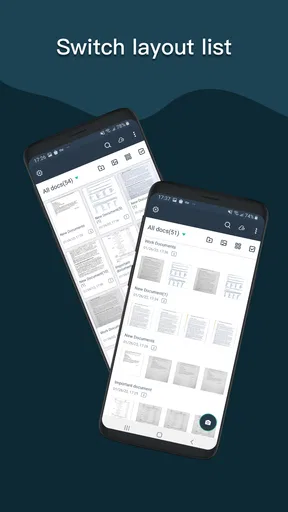
One of my favorite features is the ability to organize scanned documents into folders. It’s like having your very own digital filing cabinet. Plus, you can easily search for documents using keywords, which is super handy if you’re like me and have a ton of files.
Scanning Capabilities
Now, let’s dive into what really matters: the scanning. This app lets you scan everything from receipts to multi-page documents with just a few taps. I tried scanning a variety of documents, and the results were surprisingly good. The app automatically detects edges, and you can adjust the crop manually too if needed.
Once your document is scanned, you can choose between several filters to enhance the image. Whether it’s black and white, grayscale, or color, the app has got you covered. I found the quality to be crisp and clear, which is exactly what you want from a scanner app.
Exporting and Sharing
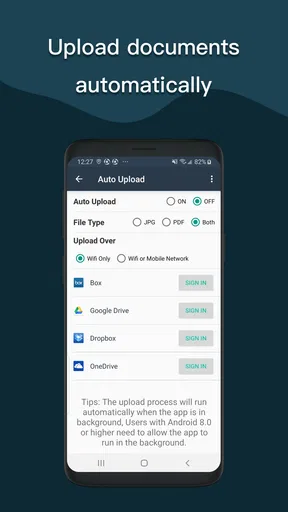
After scanning, the app allows you to export your documents as PDFs or JPEGs. Sharing these files is a cinch. You can send them via email, save them to your cloud storage, or even print them directly from your phone. It’s all about making your life easier, and I love that.
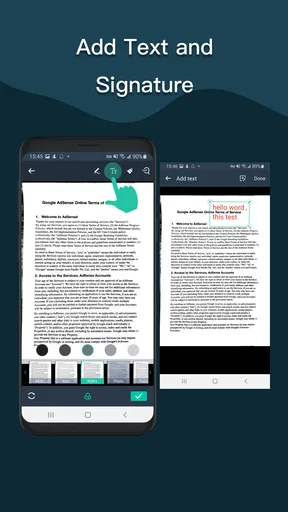
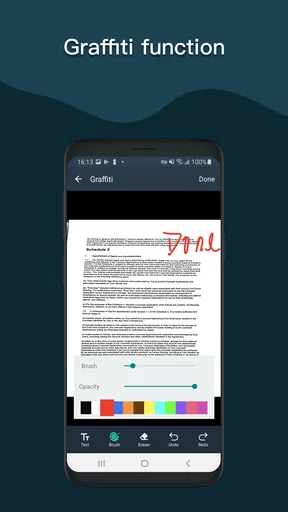
There’s also a handy feature that lets you add a signature to documents. It’s particularly useful if you’re dealing with contracts or official papers. I found it to be quite convenient, especially when you’re on the go and need to sign something quickly.
Security and Privacy
Security is a big deal these days, and the app doesn’t disappoint. You can set a password for the app, ensuring that your sensitive documents remain safe. It’s a thoughtful touch, giving you peace of mind when storing important files.
Final Thoughts
So, what’s the verdict? If you’re looking for a reliable and efficient scanning app, Simple Scan - PDF Scanner App is a solid choice. It’s user-friendly, delivers high-quality scans, and offers a plethora of features that make managing documents a breeze.
Whether you’re a student needing to scan notes, a professional handling documents, or just someone who loves staying organized, this app is worth checking out. It’s one of those tools you didn’t know you needed until you try it. Give it a shot, and you might just find it becomes a staple on your phone.
Choosing it for the right job
For a routine that revolves around occasional forms, receipts, and notes, the balance here is appealing: the phone does the capture, and the app helps shape the result into a document that is easier to pass along than a loose camera photo. I’d be comfortable using it for a reimbursement receipt or a signed permission slip, provided I had a moment to review the finished file before sending it.
There are cases where I would choose something else. A document that must meet a precise archival standard, a stack of pages that needs highly consistent capture, or work that belongs inside a company’s managed document system deserves a more specialized setup. Likewise, if I only need to photograph a whiteboard for myself, a plain camera image may be faster than creating and naming a scan. The advantage of Simple Scan is not that every paper task needs a scanner app; it is that routine paper can become a more orderly, shareable file without much ceremony.
A dependable routine beats a rushed scan
My practical advice is to make a short check part of the process: confirm the page is fully inside the frame, inspect the crop, make sure the chosen filter keeps small text readable, and open the export before you leave the document behind. For a set of pages, check order and completeness as well. These are small actions, but they prevent the awkward follow-up of asking someone to resend a form because one corner or signature did not make it into the file.
Search and folders become more useful when they reflect how you will look for a document later. I’d use names that identify the purpose or source, rather than leaving several scans indistinguishable, and keep related pages together. This is especially helpful for recurring paperwork: a receipt can be found by its context instead of relying on memory about when it was captured. The app’s organizational tools are most valuable when I use them consistently, not when I treat the phone as a dumping ground.
My connectivity verdict
Simple Scan - PDF Scanner App makes the most sense when I want to capture a paper document on the spot and decide how to share it afterward. Its scanning and export workflow can reduce the friction between a physical page and a usable digital copy, while the network-dependent destinations mean the final handoff can still depend on connection quality and the service I choose.
I’d recommend it to someone who wants a straightforward mobile scanner for everyday paperwork and is willing to check each result before relying on it. I would not pick it as a replacement for a high-volume scanner or a formal records system, and I would be careful with sensitive documents wherever they are sent. For quick, ordinary scans, though, it offers a useful middle ground: more organized than a casual photo, less demanding than a dedicated scanning setup, and at its best when I can capture carefully and share thoughtfully.
Pros
- Easy to use interface for quick scanning.
- High-quality scans with adjustable resolution.
- Supports multiple file formats.
- Allows direct sharing via email or cloud.
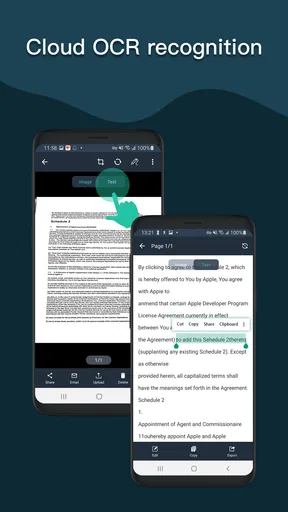
- OCR feature for text recognition.
Cons
- Free version has frequent ads.
- Limited editing tools in free version.
- Occasional lag on older devices.
- Premium subscription required for some features.
- In-app purchases can be pricey.
FAQs for Simple Scan - PDF Scanner App
What features does Simple Scan - PDF Scanner App offer?
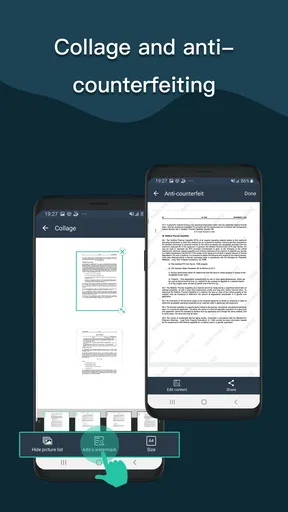
Simple Scan - PDF Scanner App provides a variety of features including document scanning, OCR (Optical Character Recognition), and the ability to save documents as PDF or JPEG. It also offers cloud integration, allowing users to easily upload documents to platforms like Google Drive, Dropbox, and more. Additionally, it includes options for document editing and sharing.
Is Simple Scan - PDF Scanner App free to use?
Simple Scan offers a free version with basic functionalities, which is sufficient for everyday scanning needs. However, there is also a premium version available for users who require advanced features such as unlimited cloud storage, advanced OCR capabilities, and an ad-free experience. Subscription details can be found within the app.
How does Simple Scan handle user privacy and data security?
Simple Scan prioritizes user privacy by implementing secure data encryption for all scanned documents. The app ensures that your files are not accessible to unauthorized users. Additionally, any documents uploaded to cloud services are subject to the security protocols of those platforms. Users can manage privacy settings directly within the app.
Can Simple Scan - PDF Scanner App convert scanned documents into editable text?
Yes, Simple Scan includes an Optical Character Recognition (OCR) feature that allows users to convert scanned documents into editable text. This is particularly useful for extracting information from printed documents or converting paper documents into digital formats. The accuracy of the OCR can vary based on the quality of the original document.
What are the system requirements for using Simple Scan - PDF Scanner App?
Simple Scan is compatible with both Android and iOS devices. For Android, it requires version 5.0 or higher, and for iOS, it requires version 11.0 or higher. The app is optimized for smartphones and tablets, ensuring smooth operation across various devices. Users should ensure they have enough storage space for saving scanned documents.


